
Accordia · iPad reader beta 1.0.5
Accordia on iPad.
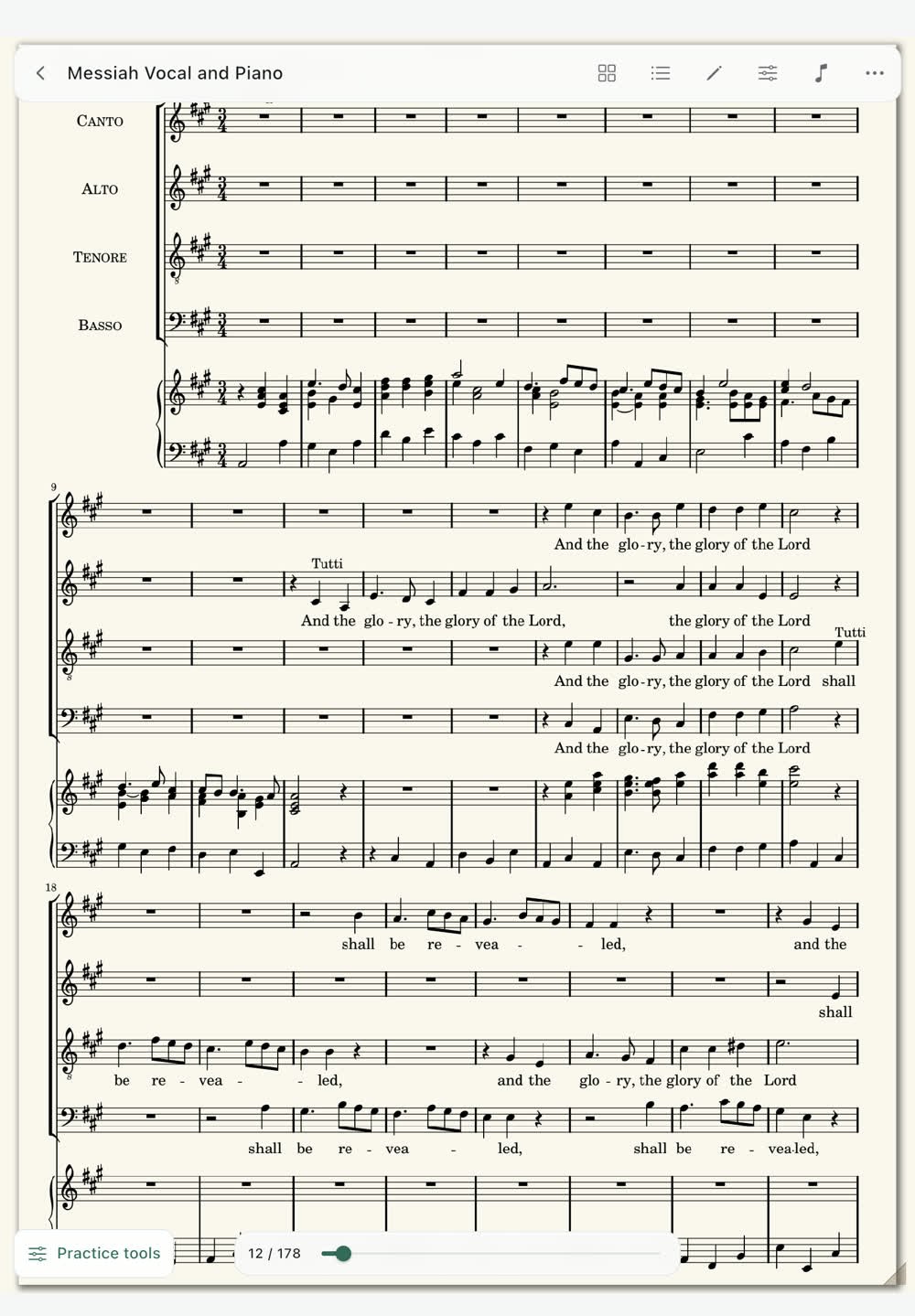
Import, read, navigate and mark a score. Practise alongside it with audio tracks, piano and voice recording.
Current iPad captures and short feature recordings. Practice audio stays local to each device.
Current iPad guide
From Library to rehearsal.
Use the steps below with your own score, or browse the 33-screen capture atlas and its short recordings of annotation, indexing and Practice tools.
Reader beta guide · version 1.0.5
This guide covers Accordia’s iPad reader in TestFlight build 2026111902: reading, page preparation, navigation, annotations, iCloud-linked PDFs and the three Practice tools. The separate Practice and Review sidebar areas are still coming soon. Keep your original score file as a separate backup.
For a visual walk-through, open the 33-screen iPad capture atlas. It also includes short recordings of the annotation, indexing and Practice journeys.
Start with the Library
Tap Import score and choose a PDF from Files. Accordia also accepts image scores and MusicXML; the page reader and iCloud PDF sync below apply to PDFs. Tap a Library row to open it. Search by title, composer, notes or tags, and sort by title, composer or recent activity.
Use a score’s … menu to edit its title, composer, arranger or editor, instrument or part, genre, difficulty, notes, favourite status and tags, or to add it to a setlist. A music-note or microphone symbol on a row means that this device has an imported practice track or saved voice take for that score.
Local and iCloud-linked copies
An imported PDF starts as Only on this device. Tap Add to iCloud on that row to link this particular copy to your private iCloud account. The PDF, markings and score information can then sync with Accordia on your other devices signed into the same Apple Account. Separately imported copies of the same PDF keep their own markings and identity.
The Library’s Sync linked scores button checks changes to scores already linked to iCloud; it does not enrol all local PDFs. Use it on both devices after making changes. On a linked score, edits to title, composer, instrument, notes, tags, favourite status and other score information can travel with the PDF and markings. Local-only scores remain on their device. If two devices edit the same item before syncing, Accordia may show both versions and ask you to choose one.
Remove from Library removes a linked score from linked Libraries when they next sync. The PDF and markings remain recoverable through Recently removed → Restore. You can restore on either device. Removing an Accordia copy does not delete the original file in Files or your cloud drive.
Read and turn pages
Tap the right side of a page to advance and the left side to go back. Tap near the centre for the reader controls. The page dial jumps to a PDF page; printed page numbers may differ because of covers and contents pages.
In Display options, choose Book pages or Continuous reading. Book pages offers Whole page, Best fit and Page width. A wide screen can show two pages; half-page turns keep the next line visible. White, Warm and Dark page colours and brightness help in different lighting. Keep screen awake is useful during a long session; Performance lock reduces accidental control taps. Test the layout and lock before performing.
Pair a page-turn pedal in iPadOS Bluetooth settings, then open Display options → Page turner and keyboard. Press each pedal and choose Standard turning, Both pedals advance or Custom controls. Test forward and back on the actual score. If a distant music page stays blank, wait briefly, then choose More options → Reload score pages.
Find movements and passages
Navigation contains Sections, Saved places, Repeats & Jumps and Setlists. A Section is a named destination within one score. Tap it to jump to its start.
For a printed contents page, choose Sections → Create from printed index. Set the PDF page range containing the index. Review the titles Accordia finds and choose the correct page-number column if the index has two. Tap Locate titles in the full score, review each destination, adjust any doubtful row, then Add index links. A completion message tells you how many links were saved; Done returns to the score. Scans can miss titles or choose the wrong page, so check the saved links against the music.
Use Add section manually if there is no printed index. More tools → Link one printed title handles a missed title; Place a score button puts a jump button on a page. Bulk markers can place the same cue, such as “Stand”, at the start or end of selected Sections; adjust individual markers afterward.
Use Saved places for named bookmarks. Repeats & Jumps connects positions for a repeat, coda or other route. The in-score Setlists tab sequences Sections of one PDF; Library setlists can include several scores. Rehearse every jump before a performance.
Prepare pages
Open Pages → Prepare Pages to crop margins, rotate or straighten the reading view. Auto crop estimates the content boundary with padding around notation and text; inspect pages with unusual margins or foldouts. Adjust crop edges lets you move the left, right, top and bottom boundaries yourself. Tap Save page. A manual crop made on any page carries forward to later pages until you make another manual adjustment; the new choice then carries forward. The page keeps its display layout while the visible portion changes.
Reset page undoes preparation for one page. Preparation does not alter your source PDF. When exporting, check the format: the original or annotated PDF does not include the on-screen crop.
Mark the music
Tap Annotate to enter marking mode and Done when finished. The palette sets colour, thickness and opacity. Use Pen for freehand cues, Highlighter for translucent emphasis, Text for instructions, and shapes or music symbols for structured marks. Selection can move, resize, duplicate, group or remove a mark. Erasers remove strokes or objects; Undo and Redo correct recent steps.
Layers and Marking Sets let you show different collections of annotations. Check the visible set before performing or exporting. Display options also controls finger drawing, Apple Pencil behaviour and how long the annotation bar stays open. Markings on an iCloud-linked PDF sync with that linked score.
Practise beside the score
Tap the compact Practice tools control over an open score. Its three actions are Piano (keyboard icon), Audio tracks (music note) and Voice recorder (microphone). The tray stays small over the music.
Import and play audio tracks
Tap the music-note icon, then Import audio. Keep multiple tracks with a score and choose one in the Practice tracks sheet. An online-only file must finish downloading in Files or its cloud-drive app before importing. The compact player has Play/Pause, a position slider, speeds from 0.5× to 1.5×, and a repeat menu. At the desired positions, choose Set loop start here and Set loop end here; Clear loop removes the range. Imported practice tracks are local to this device in this beta. Linking the PDF does not transfer its audio tracks.
Piano and Follow audio
Tap Piano to open the keyboard along the bottom. Play several keys together if needed; Sustain lets notes linger. The slim range bar moves through the keyboard, while the movement control changes the piano’s height and opacity. Follow audio, at the left of the piano toolbar, lights a clearly detected note from the playing practice track on its corresponding key. The inset green light has a clean boundary on white and black keys. Silence or ambiguous mixed audio may leave the keys unlit; it is a practice aid, not full-score transcription.
Voice recorder
Tap the microphone, then Record. Allow microphone access when iPadOS asks. Tap Stop to save a take with this score; open saved takes to replay or remove it. You can record while a practice track plays and while you play the piano. With headphones, the headphone control can keep direct keyboard audio out of the saved take while leaving the live piano audible. A microphone can still hear speakers, so make and replay a short test take. Voice takes remain local to this device in this beta.
Share and recover
Use More options → Share or print for the original PDF, an annotated PDF with visible markings, or an editable Accordia package where offered. Check a sample page and the visible Marking Set before sending or printing. Practice tracks and voice takes are not embedded in a PDF export. Keep the original file and a normal device backup.
If you remove a score accidentally, use Library → Recently removed → Restore. If sync needs attention, read the message and keep both devices’ copies while you investigate. Capture the exact wording for support.
Five-minute rehearsal check
- Open the score and jump to an early and a distant music page.
- Check layout, crop, page colour and Keep screen awake.
- Test the pedal, Section links and repeat routes.
- Select the practice track and test speed, loop and output route.
- Check Piano and Follow audio without covering the score.
- Make and replay a short voice take if you plan to record.
- Sync linked scores on both devices before relying on a recent change.
Scope: Accordia iPad reader beta 1.0.5 (2026111902), 19 November 2026. Invited TestFlight access only. This build does not promise a public App Store release, practice-track sync, voice-take sync, guided vocal assessment or automatic PDF-to-MusicXML conversion.
Music in the example screenshots: Handel, Messiah, vocal parts and keyboard reduction based on Friedrich Chrysander’s edition, typeset by Nicolas Sceaux (2009), licensed under CC BY 3.0.
Take it to rehearsal.
Check page turns, index links and Practice tools on your own score before a performance.
Download the PDF guide